

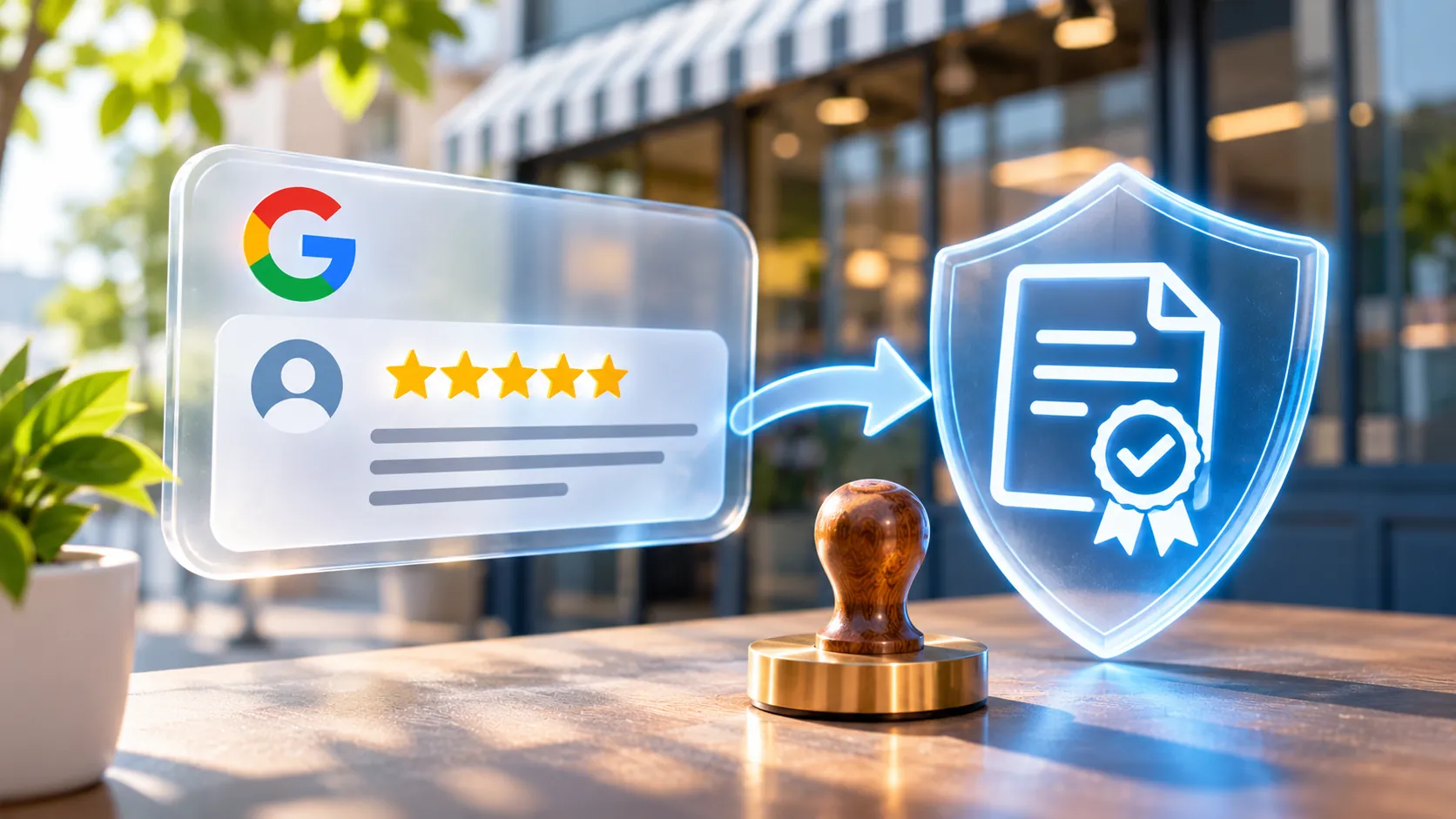
To certify a Google review as digital evidence, identify the visible reviewer, date, star rating, review text, business profile and URL before the content changes.
At SaveTheProof, we document Google Maps content using our Website Certificate or Web Browsing Session Certificate. The appropriate option depends on what can actually be viewed and captured.
Certifying a Google review does not prove that it is true, false or unlawful. It documents the content observed at a particular point in time without, by itself, establishing the reviewer’s real identity.
What Does Certifying a Google Review as Digital Evidence Prove?
A certified Google review is a review whose visible content and context have been documented through a capture associated with a verifiable certification date.
It is important to distinguish between the date displayed by Google and the certification date. Google explains that, when a review is edited, the date of its most recent modification is displayed as its publication date.
- Observed content: the review text, star rating and other elements actually visible in the capture.
- Context: the reviewer’s public profile, the reviewed business, the URL and any visible references.
- Timestamp: the moment we document the review, which may differ from its original publication date.
- Limitations: we do not verify the reviewer’s legal identity, the accuracy of their statements or every previous edit.
Our certificates incorporate advanced electronic signatures and qualified electronic timestamps. Article 41 of the EU eIDAS Regulation establishes legal presumptions concerning the accuracy of the date and time and the integrity of the data linked to a qualified electronic timestamp.
A qualified electronic timestamp does not guarantee a favourable judicial assessment. Consult the eIDAS Regulation at https://eur-lex.europa.eu/eli/reg/2014/910/2024-10-18.
According to Google, during 2025 it blocked or removed more than 292 million reviews that violated its policies, while publishing more than one billion reviews it considered helpful.
These are global content moderation figures, not a fake review rate or statistics specific to Spain. Source: https://blog.google/products-and-platforms/products/maps/new-ways-were-protecting-businesses-on-maps/.
What Information Should You Preserve Before a Google Review Changes?
Preserving a Google review requires documenting both the review and its context. An isolated screenshot of the text may make it difficult to identify the business and reviewer profile concerned.
- Visible reviewer: record the displayed public name without treating it as a verified real-world identity.
- Reviewer profile: preserve the public profile reference where Google makes it accessible.
- Displayed date: record the visible date, which may reflect the most recent edit.
- Full review text: capture the entire comment, including any content hidden behind “More”.
- Star rating: preserve the number of stars associated with the review.
- Business: identify the business name, location and specific Google Maps listing.
- Individual review URL: save the review’s direct link if Google provides a sharing option.
- Business profile URL: also preserve the listing’s address to provide additional context.
To obtain a link to an individual review, open Google Maps, find the relevant review, select “More” next to it, then choose “Share review” and “Copy link”, where these options are available.
Google explains these steps in its help documentation at https://support.google.com/business/answer/3474050?hl=en-GB. A link to the business listing does not necessarily identify the specific review.
Check that the capture displays the full review text and the information you need. A valid URL does not guarantee that the certification browser will display the intended review.
Example: if a review changes from one star to five stars, preserving certificates of both versions documents two observed states, but not every change that may have occurred between them.
How to Certify and Verify a Google Review with SaveTheProof
At SaveTheProof, we offer two certification options: a public URL capture and an interactive browsing session. Your choice depends on whether the review can be accessed directly without opening menus or expanding content.
- Website Certificate: captures a public URL without allowing interactive navigation through the page, apart from preparation options supported by the service, such as closing certain notices. It includes a free preview before certification. Price: €4.95, including VAT.
- Web Browsing Session Certificate: allows you to search for, open and expand reviews during a session lasting up to 30 minutes, with a video recording and up to 50 screenshots. Price: €9.95, including taxes.
Compare both services at https://www.savetheproof.com/en/website-certificate/ and https://www.savetheproof.com/en/browsing-session-certificate/.
- 1. Find the review: search for the business on Google Maps and locate the review you want to document.
- 2. Identify the details: check the visible reviewer, review text, star rating, displayed date and business profile.
- 3. Save the links: preserve the individual review URL, where available, and the business listing URL.
- 4. Preview the capture: try the Website Certificate service and check that the entire review is visible before requesting certification.
- 5. Browse if necessary: use a Web Browsing Session Certificate if you need to open the reviews section or expand the comment.
- 6. Review the evidence: confirm that the screenshots identify the correct review and its context without confusing it with other posts.
- 7. Download the certificate: save the ZIP package provided, including the electronically signed PDF certificate, without modifying it.
- 8. Verify the certificate: upload the PDF to https://secure.savetheproof.com/verify to check that it is valid and has not been tampered with.
Our free verification tool checks certificates issued by SaveTheProof. Verifying the PDF does not establish that the statements in the Google review are true.
To maintain traceability, record each certificate identifier, its date, the relevant URL and where the files are stored. If you have several versions, identify and preserve them separately.
If Google removes the review, retain the certificate issued before its removal. We cannot recover content that was never captured or retrospectively certify a version that is no longer accessible.
Certifying and reporting a review are separate processes. A negative review does not necessarily violate any rules. Google provides reporting options for content that breaches its policies.
Frequently Asked Questions About Certifying Google Reviews (FAQs)
Can I Certify Photos or Videos in a Google Review?
Yes. You can document whatever is visible during the capture. If you need to open photographs or play videos, consider a Web Browsing Session Certificate. The captured image is not the same as the original media file.
Can I Certify a Business Response to a Google Review?
Yes, provided the response is visible on the page or during the session. Preserve the business’s reply alongside the original review and its context. The capture does not establish who actually wrote the response.
How Can I Certify an Automatically Translated Google Review?
Where possible, document both the original text and the translation, making clear which version Google is displaying. Machine translation may introduce differences in meaning.
Can I Certify Multiple Google Reviews in One Session?
Yes, provided they are documented within the Web Browsing Session limits of 30 minutes and 50 screenshots. Identify each visible reviewer, star rating and comment separately.
Can I Certify a Google Review with Only Stars and No Text?
Yes, provided the rating is visible. The evidence should include the star rating, displayed date, public reviewer profile and relevant business, wherever that information appears.
To preserve a Google review, identify its context, capture the visible version, verify the certificate and securely retain the files. Acting promptly can help if the review subsequently changes.
At SaveTheProof, we help you document Google reviews with a verifiable certification date, without making claims about the truthfulness of their contents. Create your account at https://secure.savetheproof.com/signup to get started.